Turn your Google AI Studio prototype into a scalable app with n8n. Map messy JSON to Sheets, batch leads, add controls, and deploy with confidence.
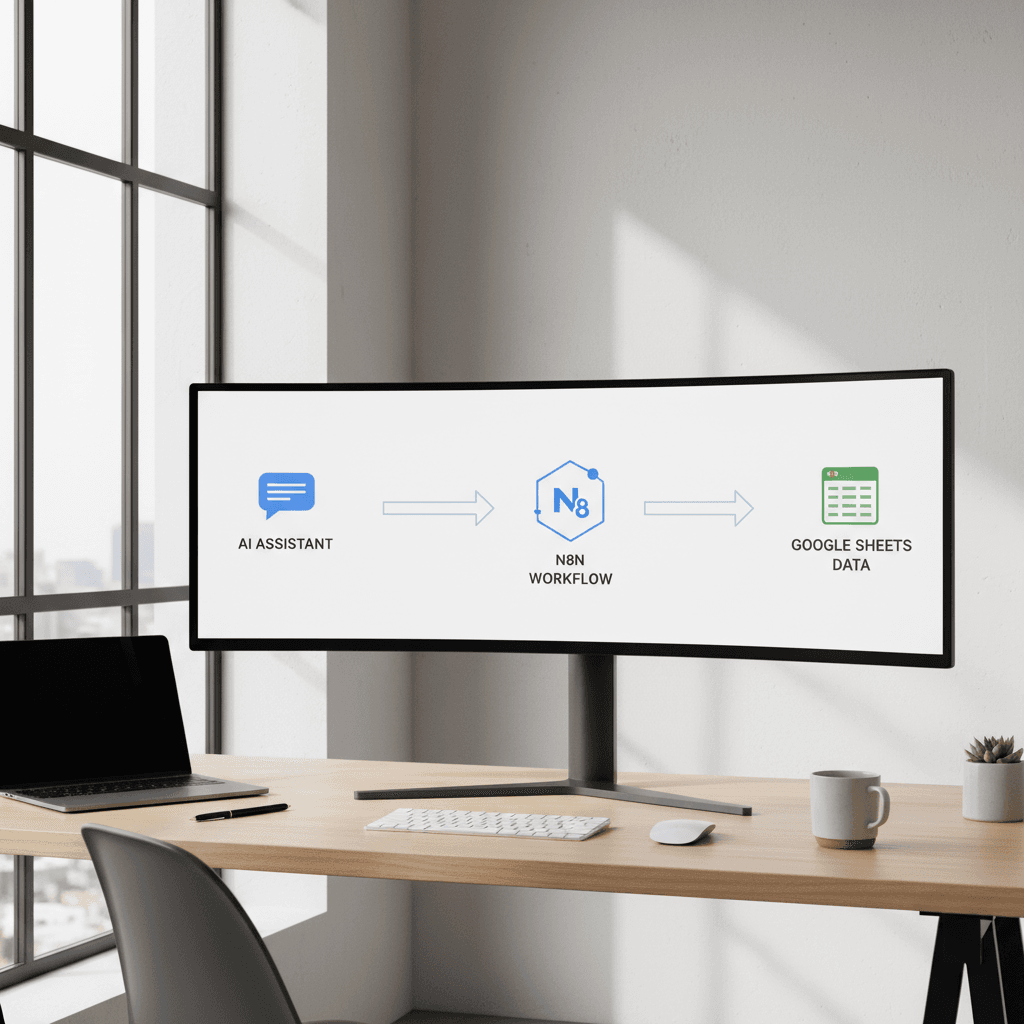
Build a Custom AI App with Google AI Studio + n8n
If Part 1 was about building the bridge, Part 2 is where the traffic flows. Today we'll do the real work: refining your Google AI Studio app, mapping its messy JSON to a clean Google Sheets schema in n8n, and deploying it so your team can actually use it. With year-end pipeline push and holiday campaign sprints in full swing, there's no better time to turn your prototype into a dependable lead engine.
This guide focuses on practical steps: how to map dynamic webhook payloads, how to use a conversational refinement loop to fix bugs in plain English, how to switch from one-by-one records to batch mode with n8n's Split Out flow pattern, and how to add app controls (like a Lead Count dropdown) without writing traditional code. We'll close with three deployment paths so you can choose the right rollout for personal use, teams, or the public.
Whether you're building a lead scraper, a research assistant, or a data enrichment tool, this blueprint will help you build a custom AI app with Google AI Studio and n8n that's reliable, scalable, and ready for Q4–Q1 execution.
Step 1: Map "messy" JSON to Google Sheets with n8n
The most important (and often most frustrating) step is mapping webhook data into a stable spreadsheet schema.
Inspect and stabilize your payload
- Send a test request from your AI Studio app to your n8n Webhook node.
- Open the execution and inspect
items[0].json. Note fields that are missing, nested, or inconsistently named. - Define your target schema in Google Sheets (e.g.,
company,website,linkedin,x_handle,email,lead_source,notes,timestamp). Keep headers consistent and lower_snake_case.
If your payload varies (e.g., some leads have social handles, others don't), stabilize it before the Google Sheets node:
- Use a
Setnode to create guaranteed keys withnullor empty strings as defaults. - If nested arrays exist (e.g., multiple socials), normalize them with a small Function node:
// n8n Function node: flatten socials
const socials = $json.socials || [];
const byType = Object.fromEntries(socials.map(s => [s.type?.toLowerCase(), s.url || s.handle || ""]));
return [{
  company: $json.company || "",
  website: $json.website || "",
  linkedin: byType.linkedin || "",
  x_handle: byType.x || byType.twitter || "",
  email: $json.email || "",
  lead_source: $json.lead_source || "AI Studio",
  notes: $json.notes || "",
  timestamp: new Date().toISOString()
}];
This approach ensures the downstream Google Sheets node always receives the same fields, even if the AI returns partial data.
Map to Google Sheets
- In the Google Sheets node, select "Append" and map each column from the normalized fields.
- Enable "Continue On Fail" if you want the workflow to keep running when a single row is invalid (useful during early refinement).
- Add an
IFnode before Sheets to skip empty companies or duplicates (check with a quick Sheets lookup or a hash ofcompany+website).
Pro tip: Create a schema_version field in your Set/Function node. If you update fields later, you can monitor which rows were created with which version.
Step 2: Use the Conversational Refinement loop in AI Studio
Your fastest debugging partner is the model itself. Use plain English prompts in Google AI Studio to tighten output and fix missing fields.
Sample refinement prompts
- "Always return an array of lead objects with keys: company, website, linkedin, x_handle, email, lead_source, notes."
- "If you cannot find a field, return an empty string, not null or undefined."
- "For social handles: prefer URLs for LinkedIn company pages; for X use '@handle'."
- "Never invent emails. Only include emails if found on the official website or verified sources."
Each time you update the prompt, send another test to your n8n Webhook and verify the payload. Aim for deterministic shapes, not perfect values—data quality improves over time, but structure needs to be rock solid from Day 1.
Add lightweight guardrails
- Ask the model to include a
validationobject:{ "is_complete": boolean, "missing": ["email", ...] }. - In n8n, route incomplete leads to a separate tab, or trigger a follow-up enrichment step.
This conversational refinement loop reduces brittle code and keeps you iterating quickly.
Step 3: Switch from one-by-one to batch data
Processing one item at a time doesn't scale when you're scraping lists or running campaign research. Instead, ask AI Studio to return a batch.
Update your AI output format
Prompt example:
- "Return an array called
leadswith up to {{lead_count}} items. Each item must match this schema: …"
Your payload now looks like:
{
  "leads": [
    {"company": "Acme", "website": "https://acme.com", "linkedin": "", "x_handle": "@acme", "email": "", "notes": ""},
    {"company": "Beta", "website": "https://beta.io", "linkedin": "", "x_handle": "@beta", "email": "", "notes": ""}
  ]
}
Handle batches in n8n with Split Out
- After the Webhook, add a "Split Out" step to convert
leads[]into individual items for downstream nodes. - Normalize each item using the same Set/Function technique as above.
- Append rows in Google Sheets.
Alternative pattern: use Split In Batches if you need rate limiting or to chunk large arrays (e.g., send 50 leads per run to stay under API quotas).
Add resilience and observability
- Throttle: a
WaitorSplit In Batchesstep prevents hitting rate limits when writing to Sheets. - Logging: add a
Setnode to capturerun_id,batch_size, andsource_query. Append to a "Runs" tab for auditing and performance tracking. - Error handling: configure an Error Trigger workflow to notify your team when a batch fails, capturing the request payload for replay.
Step 4: Add advanced app controls without code
Non-technical teammates should be able to steer the app. You can add controls directly in your AI Studio app using natural language instructions.
Lead Count dropdown
Tell the app: "Add a dropdown called Lead Count with options 5, 10, 25, 50. Use the selected value to set lead_count in the output."
In your prompt, reference it explicitly: "Generate up to {{lead_count}} leads." In n8n, read lead_count from the webhook body and pass it into logic (e.g., chunking or throttling).
Filtering and enrichment toggles
- "Add a checkbox: Include Socials. If unchecked, don't attempt social discovery."
- "Add a dropdown: Industry Filter (SaaS, Fintech, eCommerce). Use this to constrain results and enrich
lead_source."
These UX controls keep the core prompt simple while enabling powerful variations. They also reduce operational cost by skipping expensive enrichment when it's not needed.
Cost and performance safeguards
- Add a numeric input: Max Tokens or Depth, and use it to guide brevity in responses.
- Ask the model to include
estimated_costin the response based on item count. In n8n, set a rule to abort ifestimated_costexceeds your threshold.
Step 5: Choose your deployment path
The right rollout depends on who needs the app and how tightly you must control data.
Personal use
- Keep your AI Studio app and n8n workflow private.
- Store credentials in n8n as environment variables or credentials, never hard-coded.
- Ideal for fast iteration during holiday campaign spikes or quick midweek research sprints.
Team sharing
- Share the AI Studio app with your team and provide a dedicated n8n endpoint.
- Implement role-based access; use separate Google Sheets per team or add a
teamcolumn to segment data. - Add input validation in n8n (e.g., reject payloads missing
companyorwebsite).
Public deployment
- Rate limiting: throttle requests and cap
lead_count. - Abuse prevention: verify allowed origins or require a lightweight token.
- Privacy: scrub PII unless explicitly collected with consent; add a data retention policy.
- Observability: log
request_id,status,rows_written, and average latency to a "Runs" tab.
Create a simple launch checklist:
- Prompt locked and tested (structure stable for 20+ runs)
- Batch pathway validated (Split Out/Batch flow)
- Error handling and logging in place
- Cost caps enforced
- Data policy documented and visible to users
Measuring success: from prototype to pipeline
To keep your build aligned with business goals, track a few core metrics:
- Schema stability: % of runs with the expected keys present
- Fill rate: % of leads with website, LinkedIn, and at least one contact method
- Time-to-row: average seconds from request to Sheets append
- Cost per qualified lead: total run cost divided by leads meeting minimal criteria
- Lead utilization: % of rows used by marketing/sales sequences within 7 days
With these metrics, you'll know when to double down, refine prompts, or add enrichment steps.
Troubleshooting quick hits
- Problem: Keys occasionally missing → Solution: enforce defaults with Set/Function and model instruction "return empty strings for missing fields."
- Problem: Social URLs inconsistent → Solution: normalize domains (e.g., force lowercase, strip query strings) in a Function node.
- Problem: Rate limits on Sheets → Solution: Split In Batches (e.g., batches of 20) with a short Wait between batches.
- Problem: Duplicates → Solution: create a unique hash per lead (
company|website) and de-dupe via a Lookup tab before append.
As you push into peak season and 2026 planning, a reliable workflow can be the difference between a list of ideas and a live pipeline. Build a custom AI app with Google AI Studio and n8n, map your data with confidence, and deploy with just enough guardrails to scale.
If you want more hands-on help, document your target schema, write your first refinement prompts, and run three test batches today. Then share results with your team and iterate. Ready to turn this into your next lead engine? Let's ship it this week.